
Top 10 Free Cross-Platform Screen Recorders (2026 Guide)
 ScreenLaps Team12 min read
Finding a truly free cross-platform screen recorder isn't always easy. Some tools add watermarks, limit recording time, or lock important features behind paid plans. In this guide, we've rounded up the 10 best screen recorders that work across multiple operating systems, comparing their features, pros, cons, and limitations. Whether you're creating tutorials, recording meetings, or capturing gameplay, you'll find the right option here.
#Quick comparison: screen recorders for Windows
| Tool | Price | Sharable Link | System Audio | Mic Audio | Webcam | Recording Methods | Useful Bonus Tools | No-Install Recording |
|---|---|---|---|---|---|---|---|---|
| ScreenLaps | Free plan | ✅ | ✅ | ✅ | ✅ | Browser Extension (Desktop & Mobile — coming soon) | ✅ 10 tools | ✅ Record from a browser tab |
| OBS Studio | Free | ❌ | ✅ | ✅ | ✅ | Desktop App | ❌ | ❌ Desktop app install |
| Loom | Free tier | ✅ | ✅ | ✅ | ✅ | Browser Extension, Desktop App, Mobile App | ❌ | ❌ Extension or app install |
| Awesome Screen Recorder | Free tier | ✅ | ✅ | ✅ | ✅ | Browser Extension, Desktop App, Mobile App | ❌ | ❌ Extension install |
| Free Cam | Free | ❌ | ✅ | ✅ | ❌ | Desktop App | ❌ | ❌ Desktop app install |
| Vmaker | Free tier | ✅ | ✅ | ✅ | ✅ | Browser Extension, Desktop App | ❌ | ❌ Extension or app install |
| Screencastify | Free plan | ✅ | ✅ | ✅ | ✅ | Browser Extension | ❌ | ❌ Extension install |
| ScreenPal | Free tier | ✅ | ✅ | ✅ | ✅ | Browser Extension, Desktop App, Mobile App | ❌ | ❌ Launcher/app install |
| ShareX | Free | ✅ | ✅ | ✅ | ❌ | Desktop App | ❌ | ❌ Desktop app install |
| ScreenRec | Free | ✅ | ✅ | ✅ | ✅ | Desktop App | ❌ | ❌ Desktop app install |
"Recording Methods" lists every way you can currently record with each tool. "Free Bonus Tools" = a companion suite of free, no-signup web tools (video trim/compress/convert/GIF, screenshot annotate/compress, PDF create/split/convert) beyond the recorder itself — see the full list below. "No-Install Recording" = you can start recording straight from the webpage, with nothing to download or add to your browser first. ScreenLaps is the only tool here that offers all three.
#1. ScreenLaps
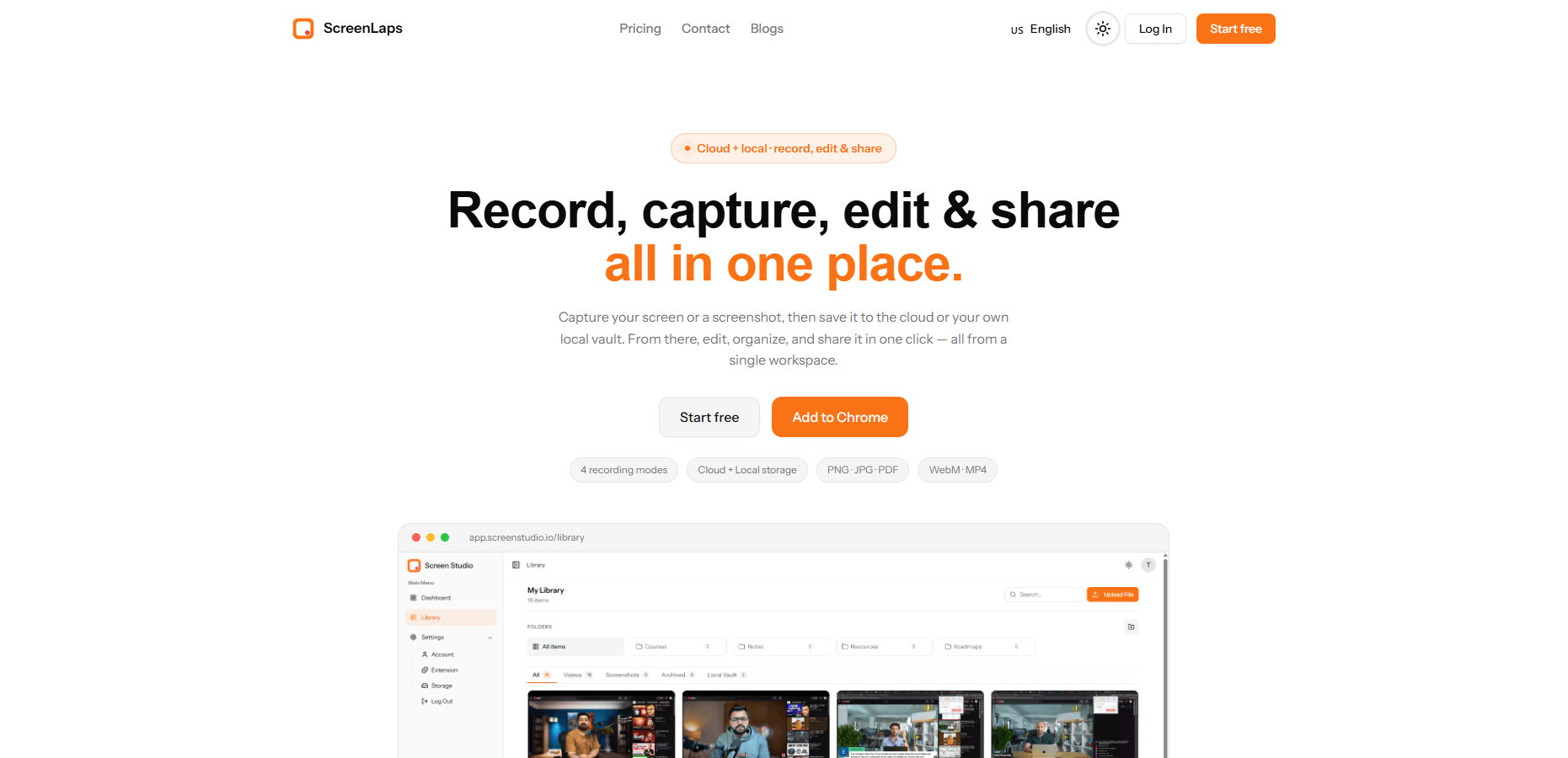
ScreenLaps offers an all-in-one solution for screen recording and screenshot capture. It is a Chrome extension that lets you record, edit, and share securely from a single workspace — and, unlike every other tool on this list, it now backs that up with a full suite of free browser-based editing tools, so you rarely need to leave the platform for everyday file prep.
Key features:
- Record your screen, window, tab, and webcam simultaneously.
- Take instant screenshots — visible area, a selected region, or a full scrolling page — and combine multiple screenshots into a single PDF.
- A built-in video editor: trim, adjust speed, merge in extra clips, add text/blur overlays, with full undo/redo.
- A full screenshot editor: 10 annotation tools (pen, highlighter, shapes, arrows, text, numbered callouts) plus blur/redact and crop.
- Store files in the cloud or keep unlimited items locally in your own vault.
- Share instantly with a public or private link, with every capture landing on its own dedicated page.
- 10 additional free tools, usable straight from the website with no extension install and no account — see below.
#Bonus: 10 free browser tools included, no account needed
This is the part most "best screen recorder" roundups miss: ScreenLaps isn't just a recorder anymore. Its website ships a full set of free, no-signup tools that handle the file-prep work every one of the other apps on this list leaves you to solve on your own:
- Screen Recorder — record straight from the browser tab, no extension install required.
- Video Trimmer — trim clips, merge in extra footage, and add overlays.
- Video Compressor — shrink a recording's file size before emailing or uploading it.
- Video Converter — convert between WebM and MP4.
- Video to GIF — turn a clip into a shareable GIF.
- Image Annotate — the same full annotation, blur, and crop toolkit as the extension, for a single screenshot.
- Image Compressor — reduce a PNG or JPG's file size.
- Images to PDF — combine screenshots into a single PDF.
- PDF to Images — extract PDF pages back out as images.
- Markdown to PDF — write Markdown with a live preview and export a true vector-text PDF: real selectable, searchable text at a fraction of the size of a scanned/rasterized export.
Every one of these runs entirely in your browser — nothing you upload is ever sent to a server, and none of them require creating an account. The video-based tools (recorder, trimmer, compressor, converter, to-GIF) need a Chromium-based browser like Chrome, Edge, or Brave for hardware video encoding; the image and PDF tools work in any modern browser.
Pros:
- Easy to use with a fast, one-click browser extension.
- Generous free plan: unlimited local vault storage, plus up to 100 cloud screenshots and 30 cloud recordings (up to 10 minutes each) without paying anything.
- The only tool on this list that pairs a recorder with a full companion suite of free editing, conversion, and PDF tools.
- Real vector-text PDF export via Markdown to PDF — actual selectable, searchable text, not a rasterized image — something none of the other nine tools here offer.
- Organize easily with folders, tabs, and instant search.
- Every capture gets its own dedicated page for easy playback and sharing.
Cons:
- The free plan's cloud tier is capped at 100 screenshots and 30 recordings (10 minutes each) — the unlimited local vault picks up the slack beyond that.
- The extension itself requires Chrome, Edge, Brave, or another Chromium-based browser to install.
- Higher-volume cloud storage and recordings with no length cap require the Pro plan.
Best for: Quick tutorials, asynchronous team updates, and instant visual feedback — and, thanks to the free tool suite, the everyday file-prep tasks around them (compressing a video for email, merging screenshots into a PDF, converting a Markdown doc to a real PDF) without installing anything extra. The unlimited local vault suits power users who want files on their own disk, while the cloud tier is generous enough for fast, short-term sharing.
#2. OBS Studio
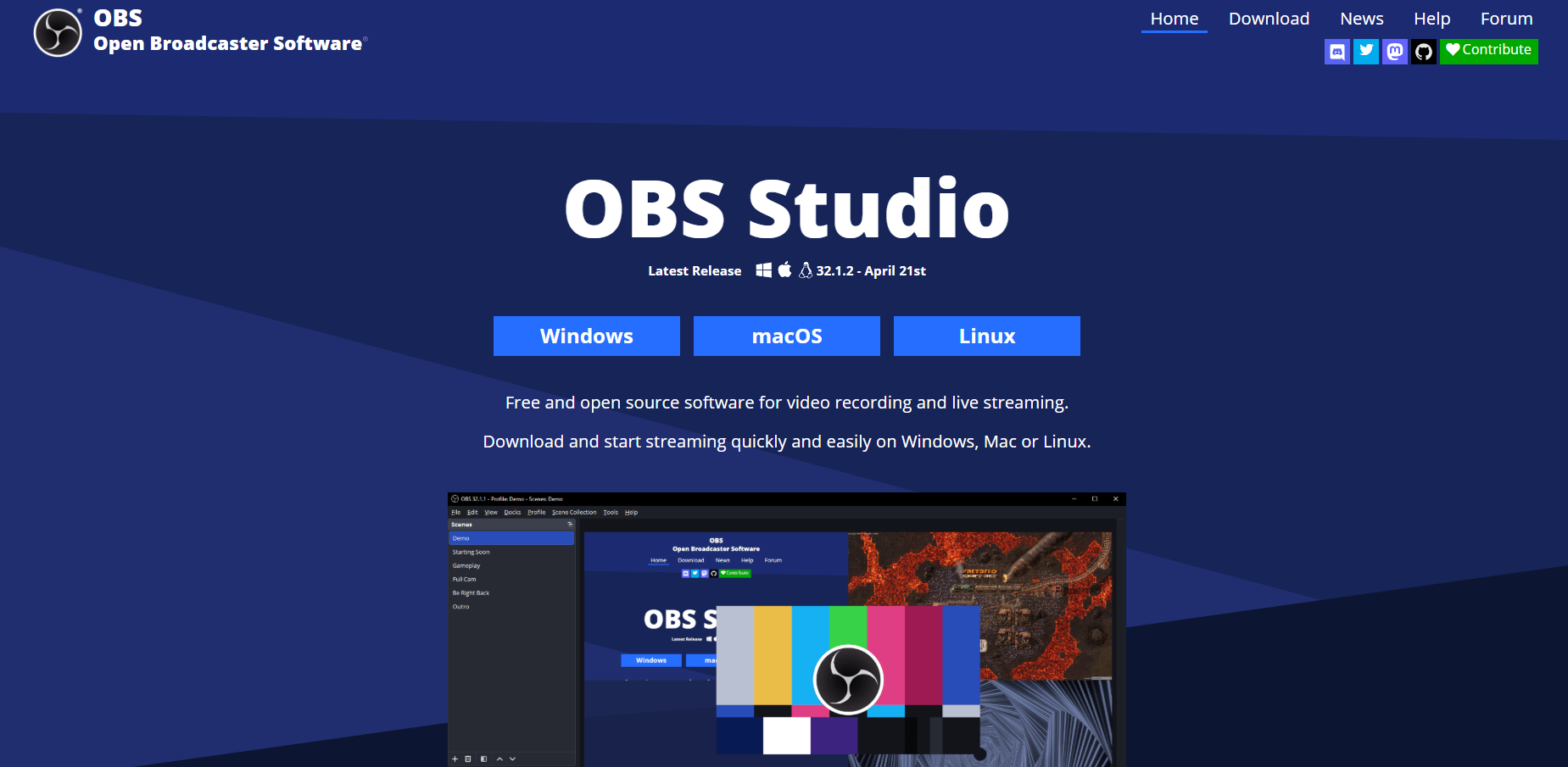
OBS Studio is a completely free, open-source giant for live streaming and recording. It offers unmatched flexibility without any paywalls or watermarks.
Key features:
- Unlimited recording time with no watermarks
- Custom scene layouts and multi-source switching
- Built-in audio mixer with noise suppression filters
- Studio Mode for previewing scenes before going live
- Native integration with Twitch, YouTube Live, and Facebook
Pros:
- 100% free and open-source forever
- Highly customizable overlays and shortcuts
- No limits on video length or resolution
- Works on Windows, Mac, and Linux
Cons:
- Steep learning curve and complex user interface
- Lacks built-in video editing tools
- Can be heavy on system resources
- No official customer support or guided onboarding
Best for: Gamers, professional live streamers, and tech-savvy users who need total control over their recording environment and don't mind learning advanced software.
#3. Loom
Loom offers a popular cloud-based recording solution for async team communication. Its free Starter plan is great for sharing quick, digestible video messages.
Key features:
- Simultaneous screen, microphone, and webcam recording
- Instant video sharing via generated links
- Viewer engagement tracking and video comments
- Basic video trimming and emoji reactions
- Integrations with Google Drive, Slack, and Notion
Pros:
- Incredibly intuitive and simple to use
- Saves videos to the cloud instantly to free up hard drive space
- Chrome extension makes it highly accessible
- Great for remote team collaboration
Cons:
- Starter plan limits you to 25 videos per person
- Free videos are capped at 5 minutes each
- Requires an internet connection to work
- AI features are locked behind the paid tiers
Best for: Quick, asynchronous updates and feedback loops for remote teams where a 5-minute time cap isn't an issue.
#4. Awesome Screen Recorder
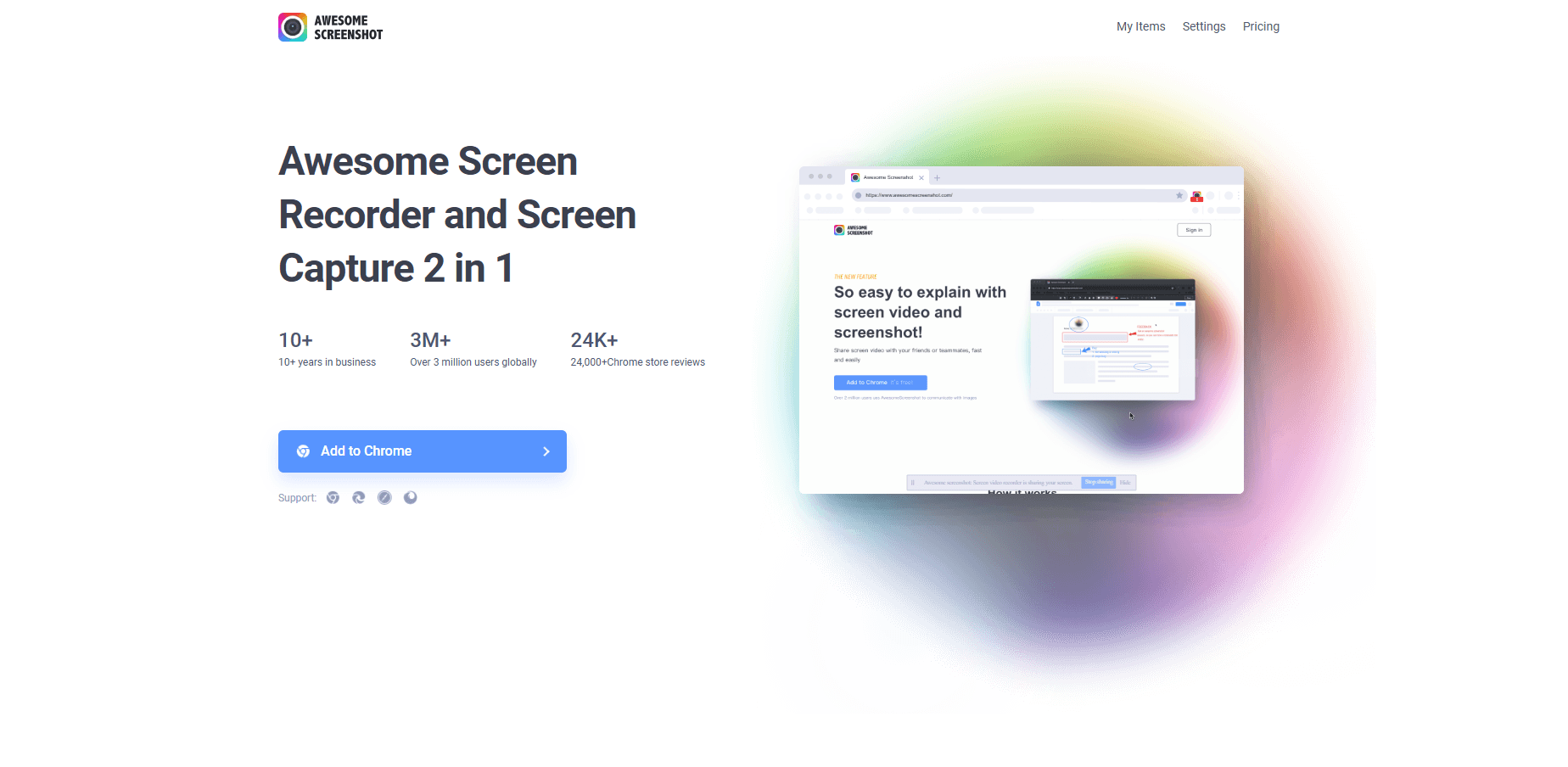
Awesome Screen Recorder is a popular 2-in-1 browser extension. It handles both screen recording and screenshots with cloud saving.
Key features:
- Record desktop, tab, or webcam
- Capture full-page scrolling screenshots
- Save locally as MP4 or WebM
- Annotate images and edit videos
- Create instant shareable cloud links
Pros:
- 2-in-1 recording and screenshot tool
- No watermark on saved videos
- Easy to use Chrome extension
- Fast sharing with team apps
Cons:
- Advanced features require paid plans
- Cloud storage limits on free tier
- Relies heavily on web browsers
- Can run out of space quickly
Best for: Educators and teams who work in web browsers. It is great for quick feedback but limited by free cloud space.
#5. Free Cam
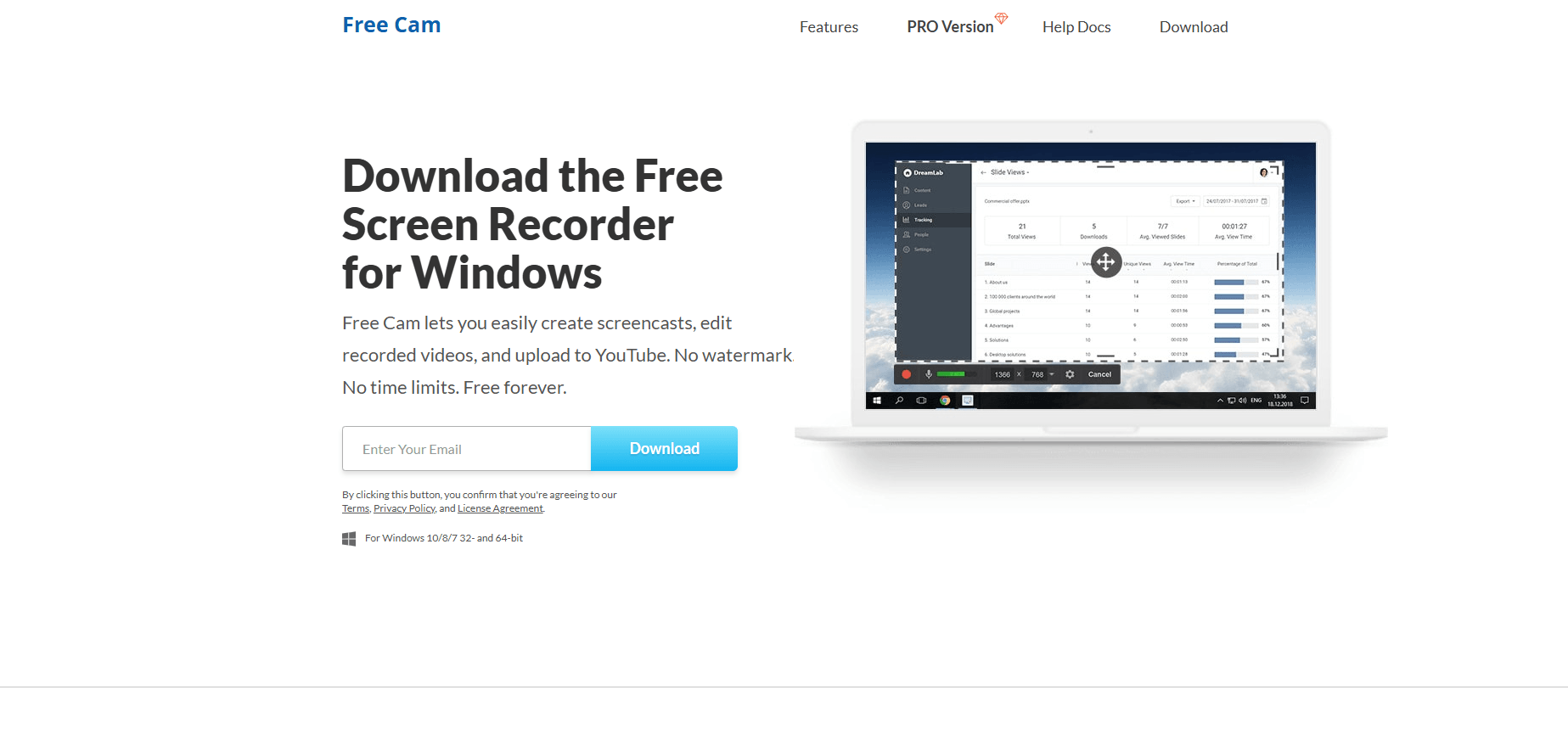
Free Cam provides a highly intuitive and clean interface for basic screen recording. It offers essential editing features without overwhelming the user.
Key features:
- Record selected screen regions, active windows, or full display
- Capture system sounds and microphone audio
- Built-in audio and video editor to trim clips
- Background noise reduction and volume adjustments
- Direct one-click upload to YouTube
Pros:
- Absolutely no watermarks on exported videos
- No time restrictions on your recordings
- Extremely simple and lightweight for beginners
- Included audio editor is surprisingly capable
Cons:
- Lacks webcam recording functionality
- Export options are limited in the free version
- Advanced video editing features are restricted to the paid Pro tier
- Large recording files can occasionally slow down system performance
Best for: Educators or small business owners who need a fast, simple way to record high-quality tutorials without watermarks, but don't need to show their face on camera.
#6. Vmaker
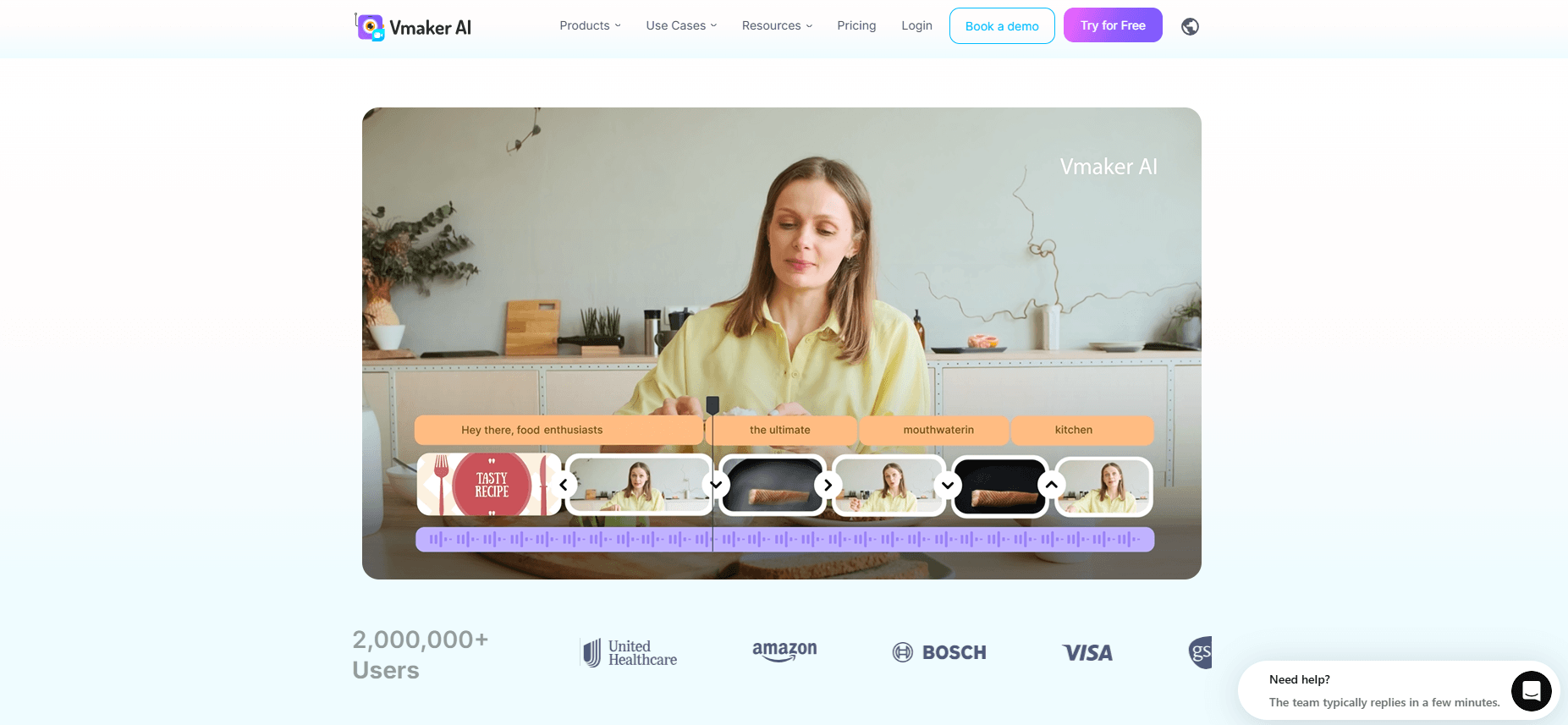
Vmaker is a cloud-based screen and webcam recorder tailored for content creators and sales teams. It combines the ease of a browser tool with 4K recording capabilities.
Key features:
- Record screen, webcam, or both simultaneously
- Capture videos in up to 4K resolution on the free tier
- Custom background and background blur for webcam
- Auto-delete videos using a built-in timer feature
- Direct video uploading to YouTube
Pros:
- Unlimited cloud upload storage for saved videos
- No watermarks even for free users
- Includes basic on-screen drawing and annotation tools
- Allows folder organization to keep projects tidy
Cons:
- Some users report occasional glitches with audio syncing
- Mac app can sometimes log users out unexpectedly
- No Android mobile application available
- Processing and cloud uploading can be slow for longer files
Best for: Creating high-resolution 4K tutorial videos or sales pitches where cloud storage and video organization are top priorities.
#7. Screencastify
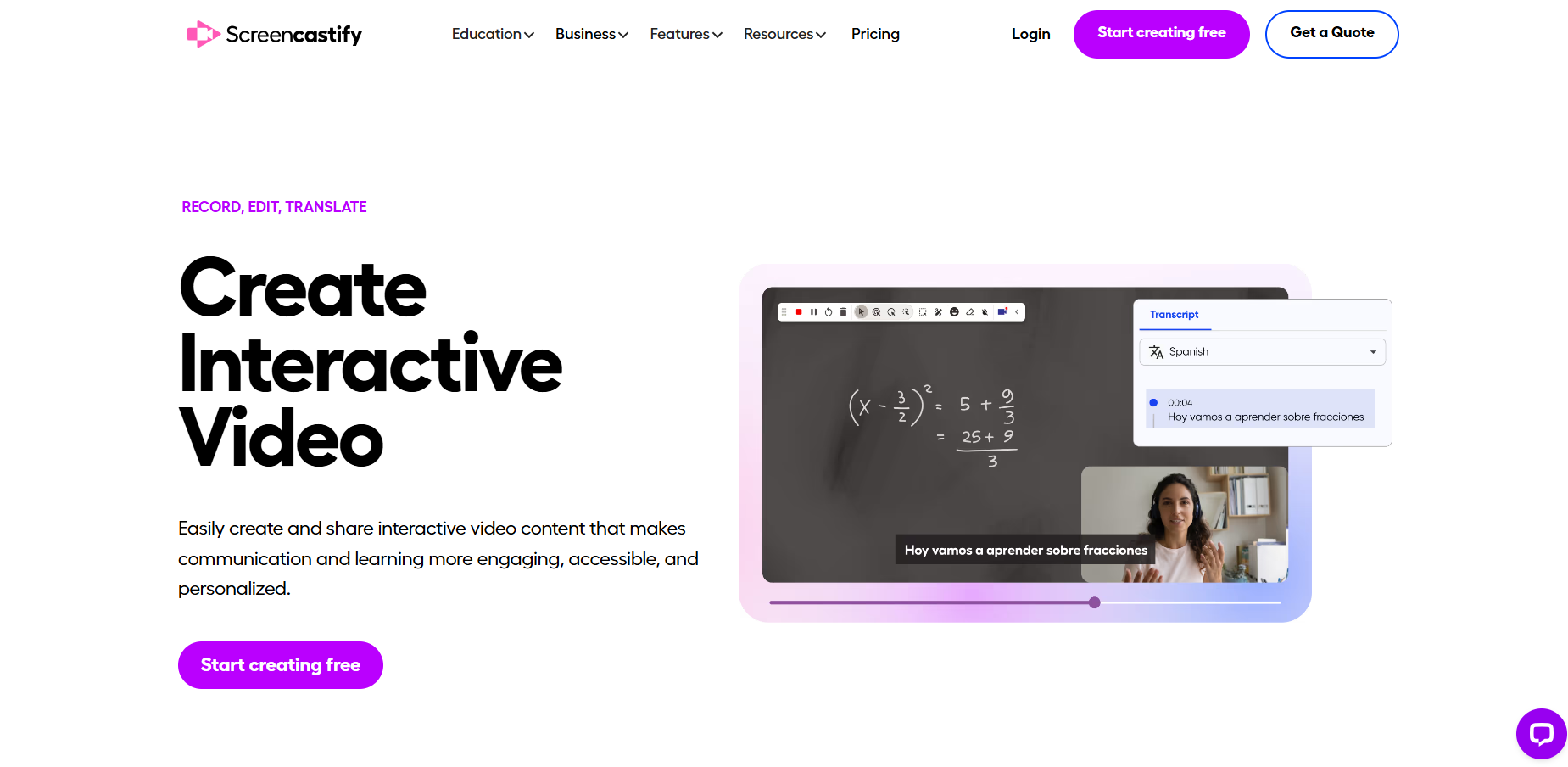
Screencastify is a widely used Chrome extension built heavily around the Google ecosystem. It is immensely popular in the education sector for quick lesson creation.
Key features:
- Browser-based recording for screen, webcam, and microphone
- Pause and resume during active recording
- Automatic saving directly to Google Drive
- Export files locally to your hard drive
- Basic drawing and annotation tools
Pros:
- No software installation required beyond the Chrome extension
- Seamless integration with Google Drive and Google Classroom
- Ability to pause during recording to switch apps
- Very easy to learn for students and teachers
Cons:
- Free plan is severely limited to only 10 total videos
- Recordings are capped at a maximum of 30 minutes each
- Occasional bugs can log users out, risking lost recordings
- Requires a Google account to function smoothly
Best for: Teachers and students heavily integrated into Google Workspace who need to make very quick, simple educational screencasts.
#8. ScreenPal
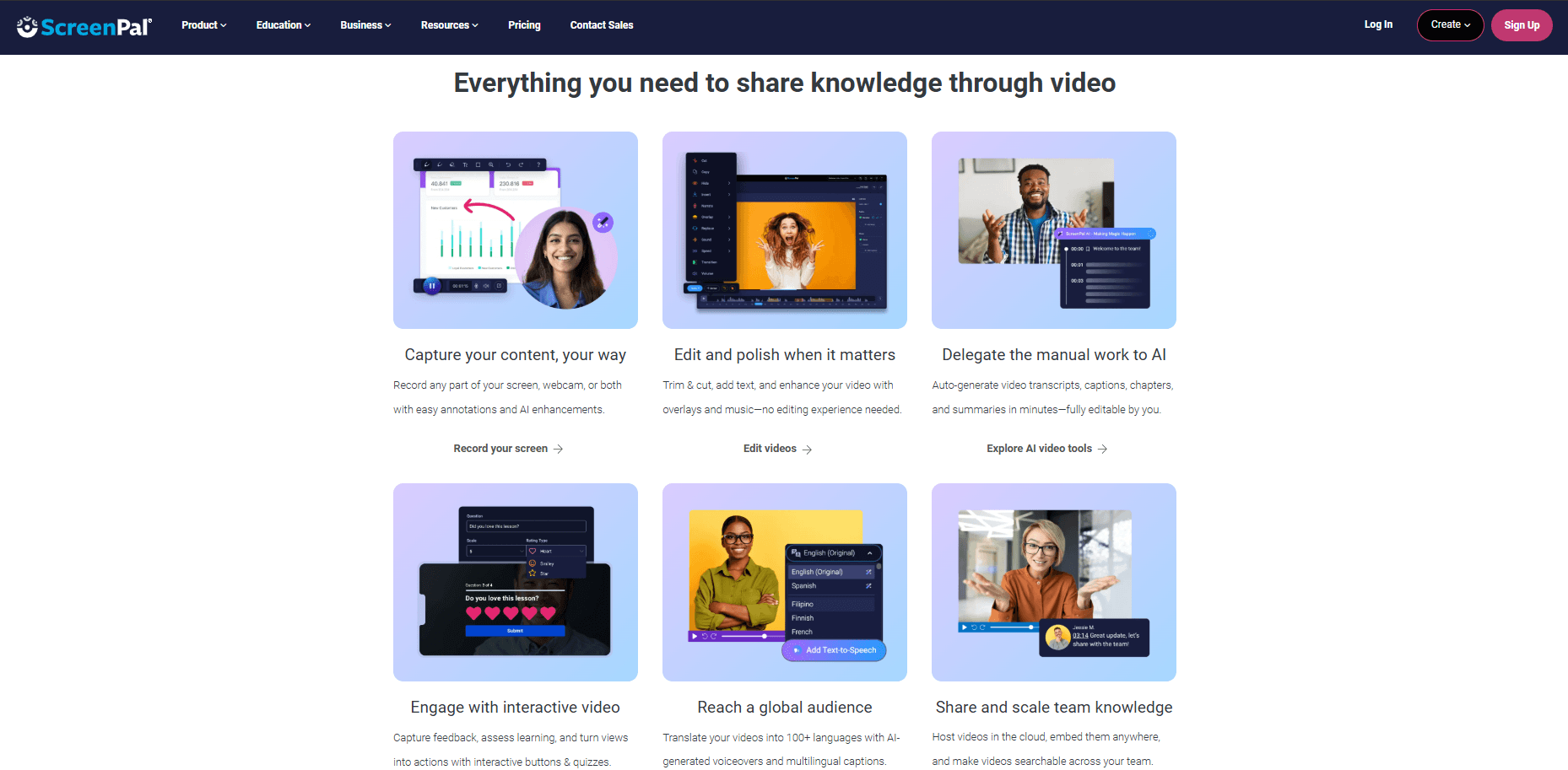
ScreenPal has a free tier for basic recording with webcam. It used to be Screencast-O-Matic. It has grown a lot since its rebrand.
Key features:
- Record screen, webcam, or both at once
- Built-in video trimmer
- Upload to YouTube, Google Drive, and Vimeo
- Draw and narrate while you record
- Works on Windows, Mac, and Chromebook
Pros:
- Easy to learn with a clean UI
- Webcam overlay works well
- Post straight to video sites
- Active updates
Cons:
- Free tier adds a watermark
- Free clips are capped at 15 minutes
- Full editing needs a $4/month plan
- Can lag at high resolutions
Best for: Quick demos and talks with a webcam. The 15-minute cap is fine for short clips but blocks longer work.
#9. ShareX
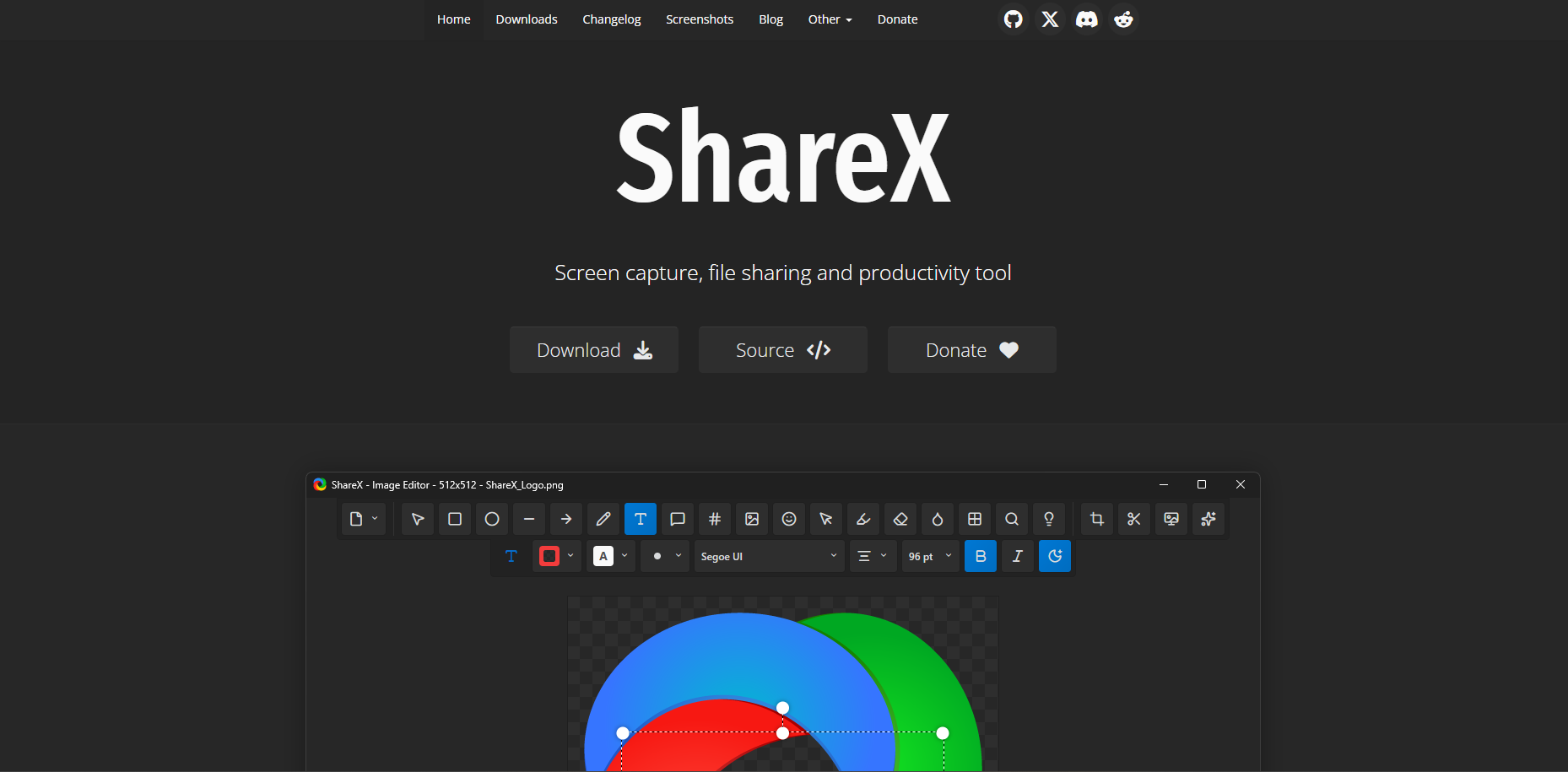
ShareX is an open-source, ultra-lightweight screen capture and recording tool for Windows. It punches way above its weight with extreme automation capabilities.
Key features:
- Capture full screen, specific regions, active windows, or scrolling pages
- Built-in GIF creation and screen recording
- Customizable post-capture workflows and automatic saving
- Instant upload integrations with Imgur, Google Drive, and Dropbox
- Includes a color picker, OCR tool, and image editor
Pros:
- Completely free with no ads or watermarks
- Highly customizable hotkeys for quick access
- No recording time limits
- Massive array of extra productivity tools included
Cons:
- Only available for Windows operating systems
- The sheer volume of features can overwhelm beginners
- Scrolling capture can occasionally be buggy
- No official technical support line
Best for: Power users on Windows who want to automate their screenshot and screen recording workflows down to the exact keystroke.
#10. ScreenRec
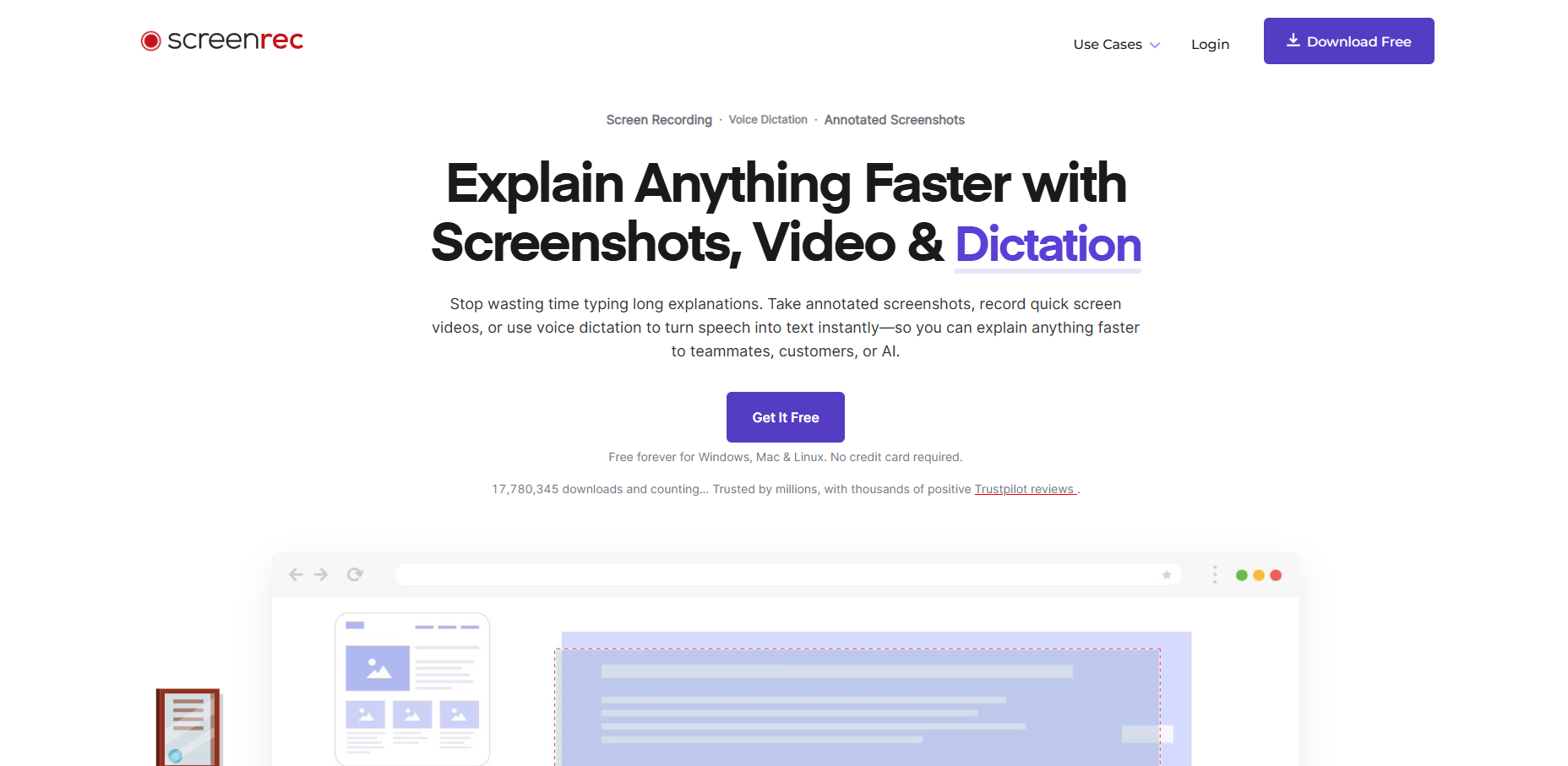
ScreenRec is a highly efficient productivity tool built to replace long meetings with instant, secure video messaging and screen sharing.
Key features:
- One-click screen recording with computer audio and microphone
- Instant generation of a private sharing link
- 1-to-1 secure encryption for corporate sharing
- Cloud storage included for free accounts
- Screenshot annotation and drawing tools
Pros:
- Completely free with no time limits (once you create a free account)
- No watermarks applied to the videos
- Extremely fast link generation for instant sharing
- Lightweight desktop client
Cons:
- Lacks robust video editing features
- Not meant for live streaming or complex setups
- Without a registered free account, recording is limited to 5 minutes
- Interface is somewhat dated
Best for: Corporate professionals and developers who need to instantly record bugs or give feedback using secure, shareable links without worrying about time limits.
ScreenLaps Team
The people building ScreenLaps.